Ingest
Ingest is the single page where you add the systems your data comes from and set up the syncs that copy that data into your warehouse.
Two ideas run through this page:
- A source is a system where your data already lives — KoboToolbox, Google Sheets, CommCare, Avni, Zoho, and many others. Adding a source saves the access details for that system.
- A connection is a sync between one source and your warehouse. It decides which tables, sheets, or forms get copied over, and how often. One source can have several connections.
Your warehouse — the single database everything is copied into — is set up once in Settings → Data. The name of the warehouse in use is shown next to the Ingest heading; select it to open its settings.
Reading the page
Select Data in the left menu, then select Ingest.
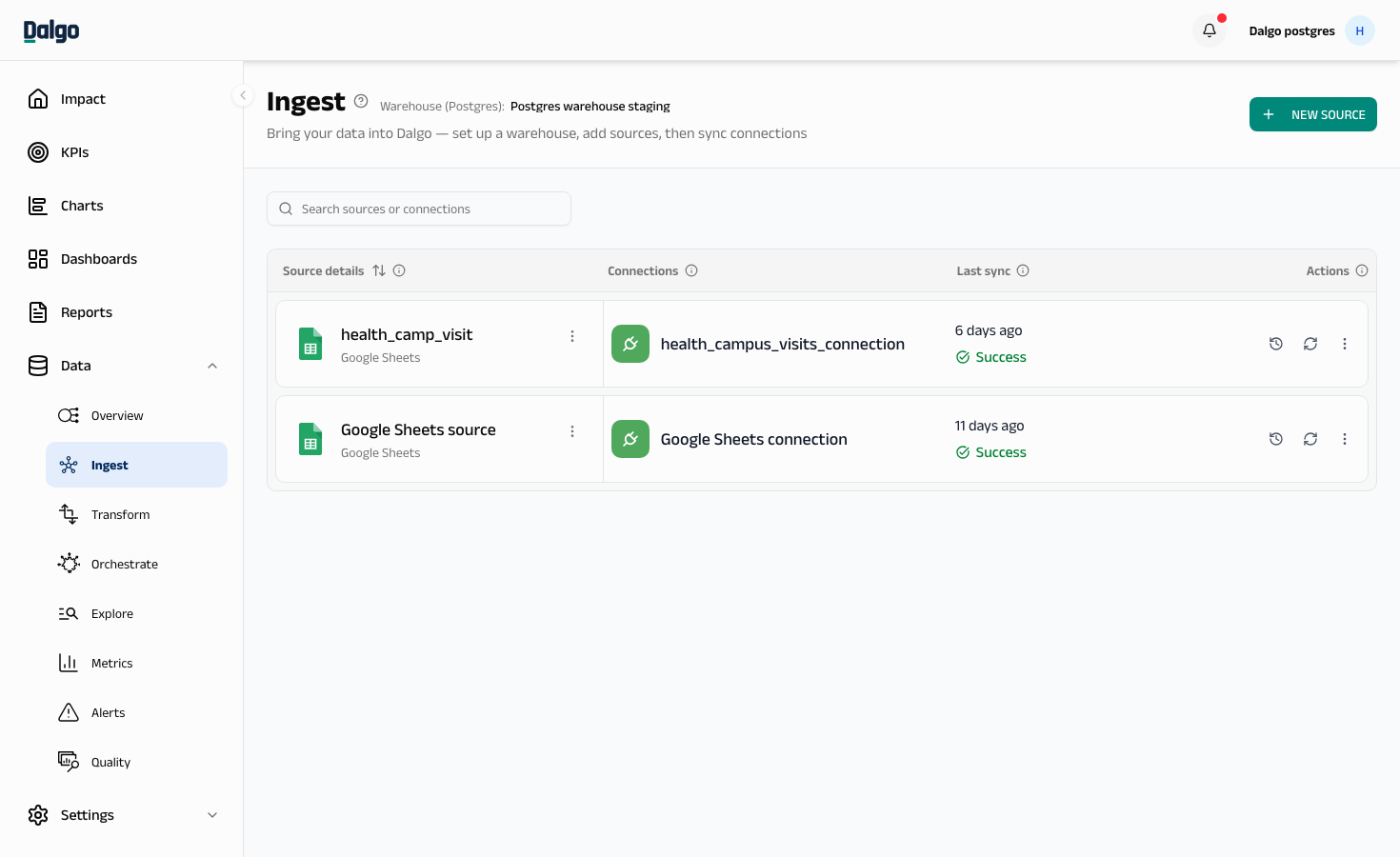
Each row is one source, with its connections listed beside it:
| Column | What it shows |
|---|---|
| Source details | The source name and its type. Select the header to sort by name or by newest |
| Connections | Every connection that pulls from that source |
| Last sync | When that connection last ran, and whether it succeeded |
| Actions | View history, sync now, and the ⋮ menu for that connection |
Use the search bar to filter by source name or connection name. Each column header has an ⓘ icon that explains the column in plain language.
You may need to whitelist these IP addresses in your organisation's firewall before Dalgo can reach your data sources and warehouse:
13.202.128.4765.2.173.97
Adding a source
Adding a source is a guided flow. It ends by offering to create the first connection for that source, so you can go from nothing to syncing data in one pass.
- Select New Source in the top right.
- Select a source from Popular sources, or search the full catalogue for the system you use.
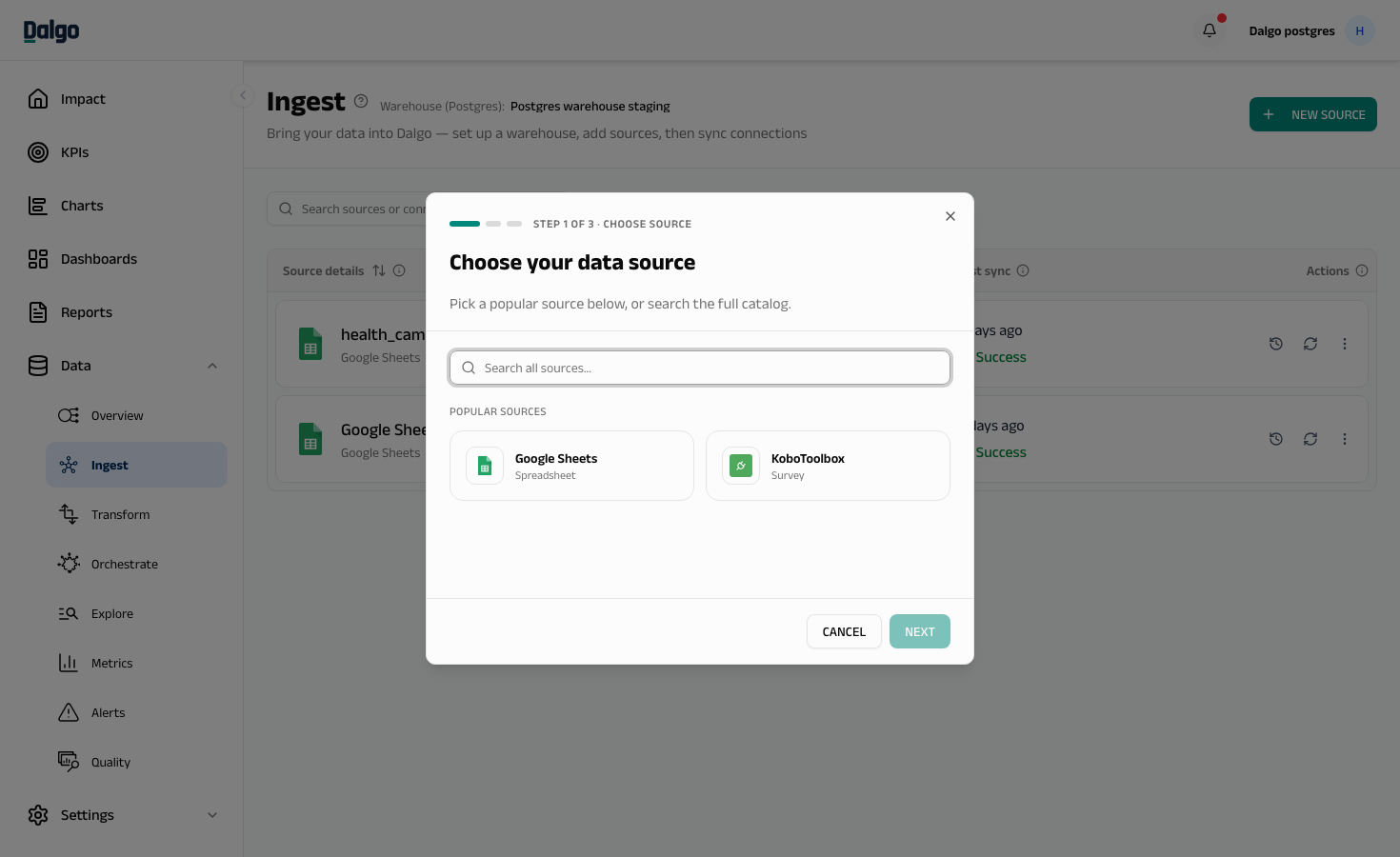
- Select Next.
- Give the source a Source name and fill in the configuration form. The fields are different for every source — if you're unsure what's needed, check that system's own documentation or ask whoever manages it.
- Select Next. Dalgo checks that it can reach the source before moving on.
- Set up the first connection for the source, or close the flow and add one later.
Adding a connection
A source can feed several connections — for example, one per set of tables you want on a different schedule.
- Select the ⋮ menu on the source row.
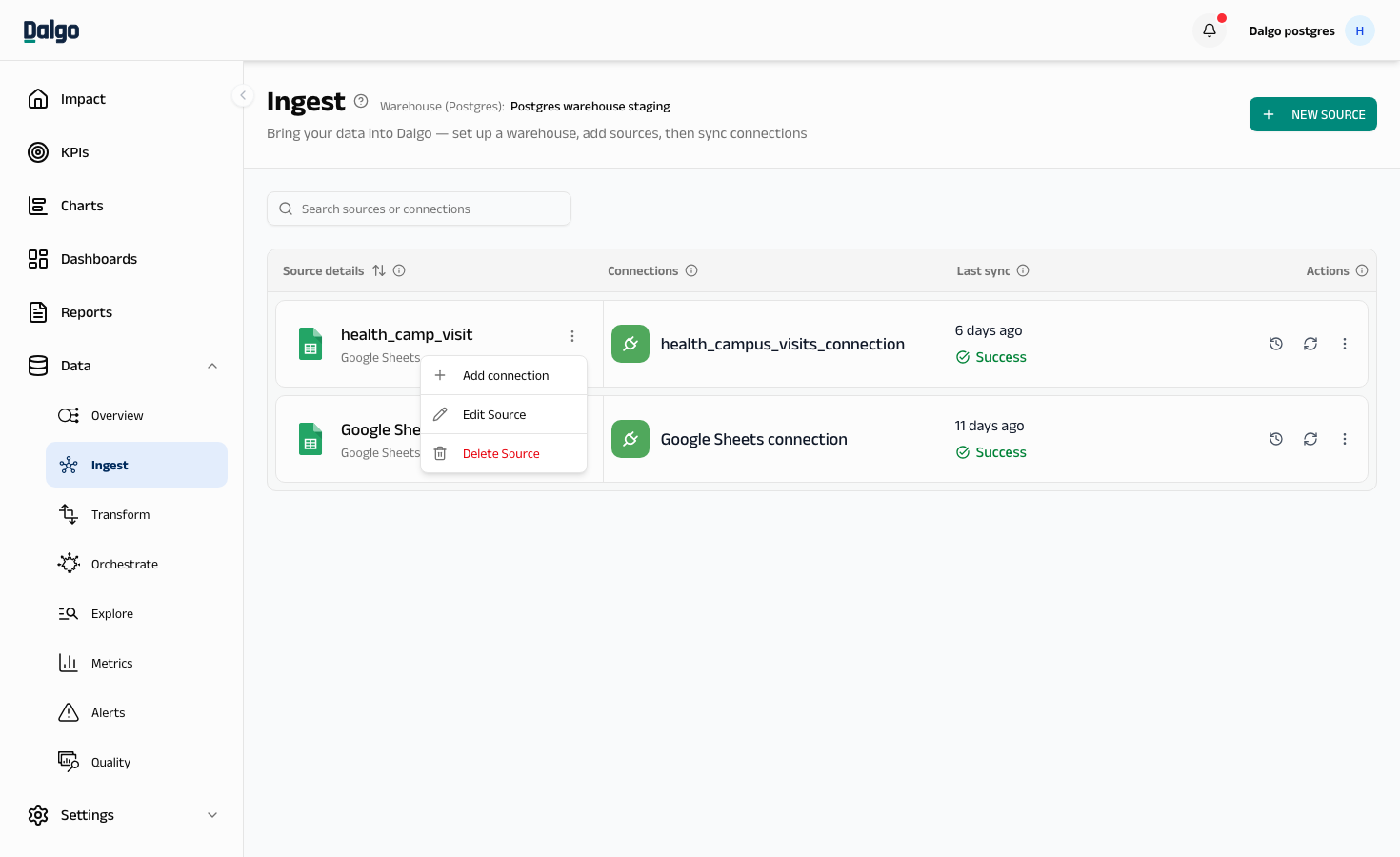
- Select Add connection.
- Give the connection a Connection name. The Source is already filled in and can't be changed here.
- Set the Destination Schema — the schema in your warehouse the data lands in.
- Wait for Dalgo to fetch the tables from the source, then use the Sync? toggle to choose which ones to copy. Everything is selected by default. Expand a table to see its columns.
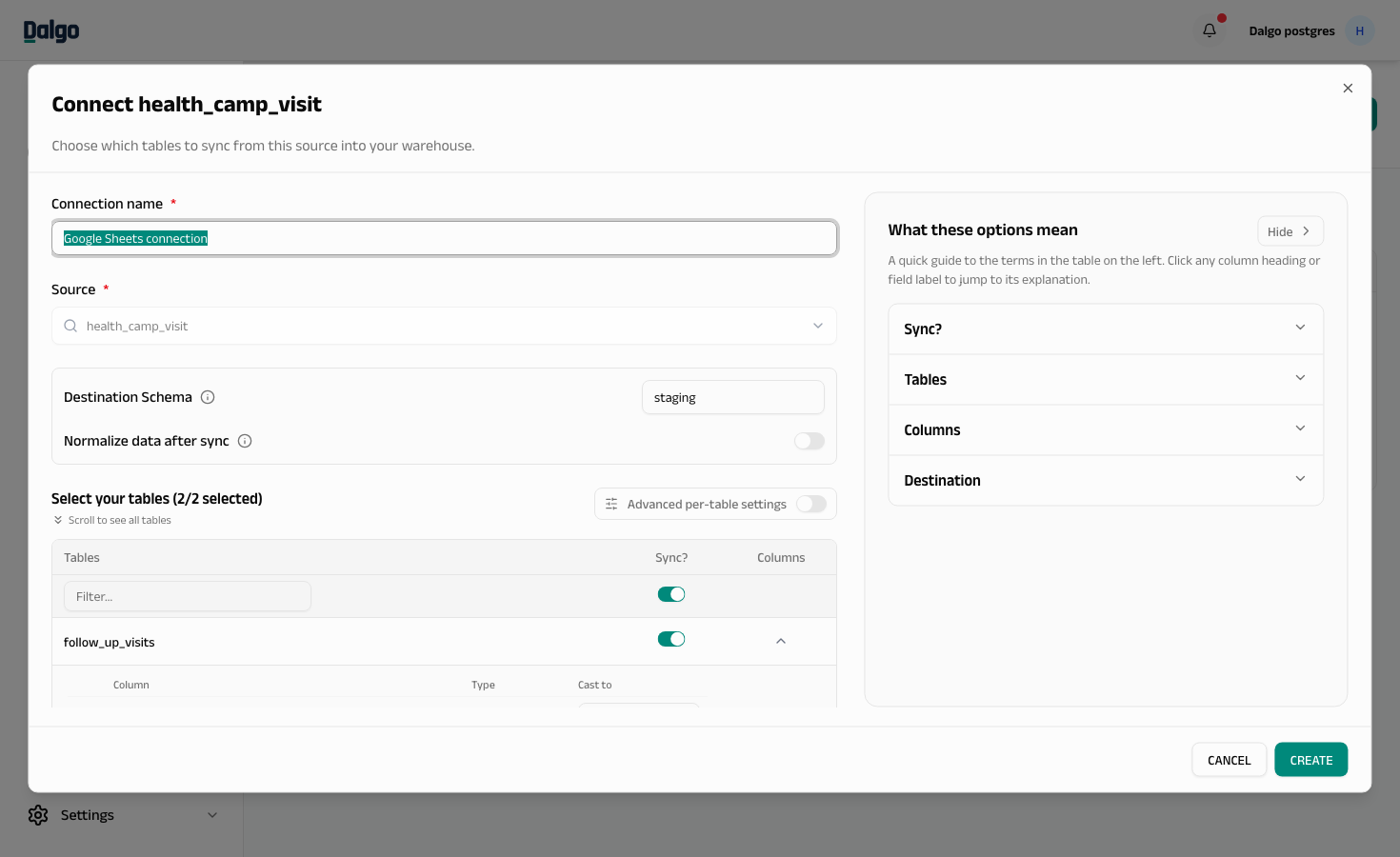
- Select CREATE.
The What these options mean panel on the right explains each term — select any column heading or field label to jump to its explanation.
Turn on Advanced per-table settings if you need to control how each table syncs — incremental versus full loads, the destination sync mode, and the cursor field or primary key used to detect new rows. The defaults are fine for most sources.
Syncing data
A connection syncs on whatever schedule your pipeline runs (see Orchestrate), and you can also run one on demand.
- Select the sync icon on a connection row to pull the latest data straight away. The row shows the run's progress and turns to Success or Failed when it finishes.
- Select the history icon to see past runs — date, records copied, data volume, and duration.
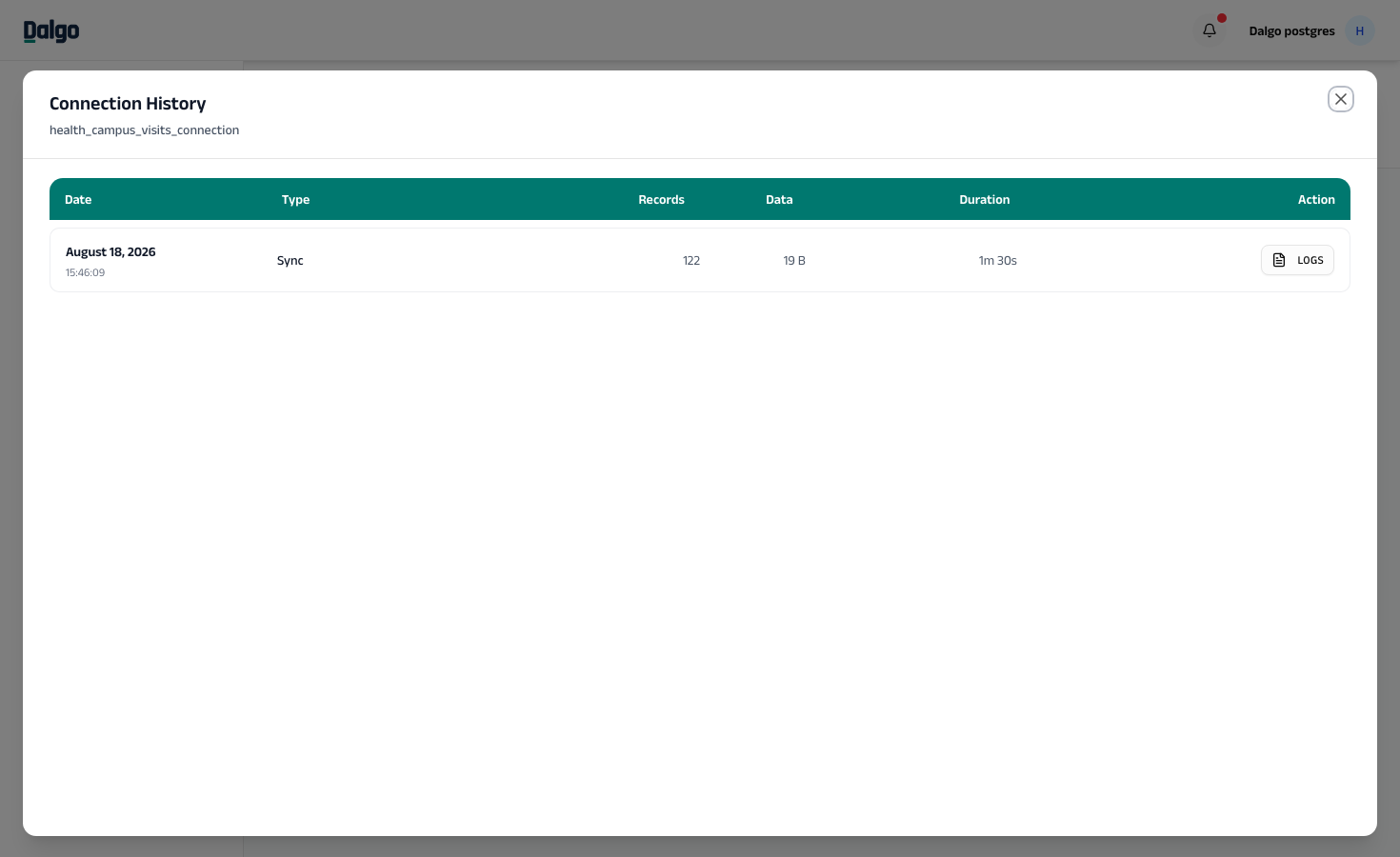
Select LOGS on any run to see what happened during that sync.
Managing a connection
Select the ⋮ menu on a connection row.
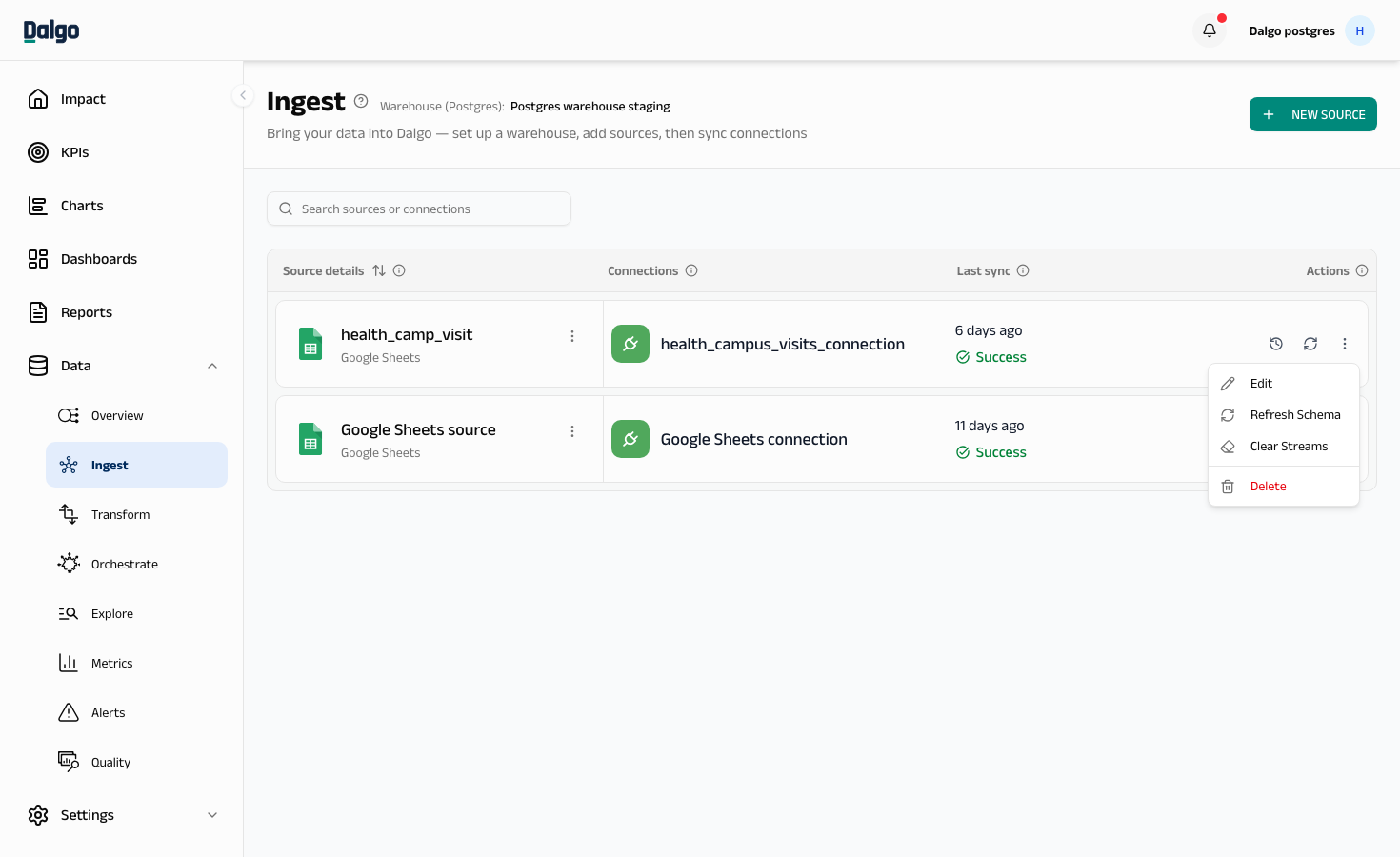
| Option | What it does |
|---|---|
| Edit | Change the connection name, schema, or which tables are synced |
| Refresh Schema | Check the source for new or changed tables and columns |
| Clear Streams | Remove data already copied into the warehouse — the connection itself stays |
| Delete | Remove the connection |
Deleting a connection is permanent and removes all its sync history. This cannot be undone.
Editing or deleting a source
Select the ⋮ menu on the source row, then select Edit Source to update its access details, or Delete Source to remove it.
A source can only be deleted once nothing is syncing from it. If any connection still uses it, Dalgo refuses the delete and names the connections in the way — delete those first, then delete the source.
Schema changes
If tables or columns change in your source, Dalgo notices during the next sync.
- A Pending Schema Changes banner appears at the top of the Ingest page, listing the affected connections.
- Select View next to a connection to see what changed.
- Approve the change so future syncs use the new schema, or ignore it.
Next: Settings → Data · Transform · Orchestrate