KPIs
KPIs (Key Performance Indicators) are the headline numbers your team tracks — each one paired with a target and a status so you can see at a glance whether you are on track.
A KPI in Dalgo combines a saved Metric with a target value, a time period, and Red / Amber / Green (RAG) thresholds. The result is a card that shows the current value, how it compares to your target, the trend over time, and a status badge.
KPIs are the leadership-facing layer on top of your data. Use them for the indicators you review in team meetings, share with funders, or publish on a dashboard.
The KPI page
Select KPIs in the left menu to open the KPI library.
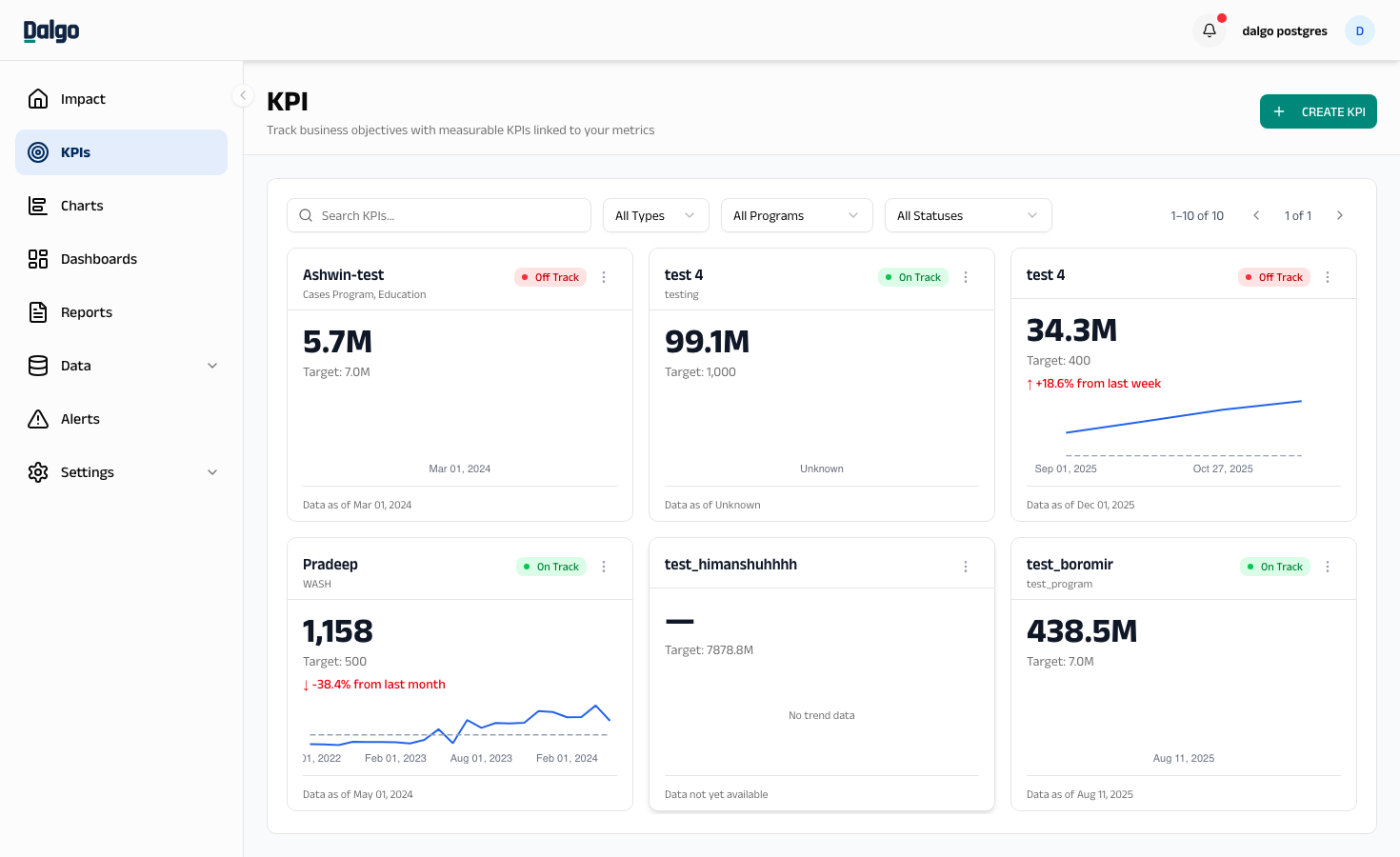
Each card shows:
- The KPI name and program tag.
- A status badge — On Track, Needs Attention, or Off Track.
- The current value and the target.
- A period-over-period change — for example,
↑ +12.3% from last month. - A small trend chart showing recent periods.
- The date the underlying data was last refreshed.
Filtering and searching
Use the controls above the card grid to narrow the list:
- Search KPIs — find a KPI by name.
- Type — filter by KPI classification (Input, Output, Outcome, Impact).
- Program — filter by program tag.
- Status — show only On Track, Needs Attention, or Off Track KPIs.
Card actions
Select the ⋯ menu on any card to:
- View KPI — open the drilldown drawer with a larger chart and notes timeline.
- Edit KPI — change the name, target, RAG thresholds, tags, or classification.
- Delete — remove the KPI (blocked if it is on a dashboard — see Deleting a KPI).
- Download as PNG — save the card as an image.
- Export Data as CSV — download the trend data.
Deleting a KPI
- Select the ⋯ menu on the KPI card.
- Select Delete.
- Confirm in the dialog.
If the KPI is used on one or more dashboards, deletion is blocked. The dialog lists every dashboard that uses the KPI — remove it from those dashboards first, then delete.
Deleting a KPI is permanent. The KPI definition, its target, and any notes you added are removed.
Next: Creating a KPI · Notes and drilldown · Sharing a KPI · Metrics