Sharing a report
Share a report with specific people or groups, or generate a public link for stakeholders who don't have a Dalgo account.
Opening the share modal
- Open the report, or find it in the Reports list.
- Select the Share button (↗) in the top-right corner, or on the report row in the list.
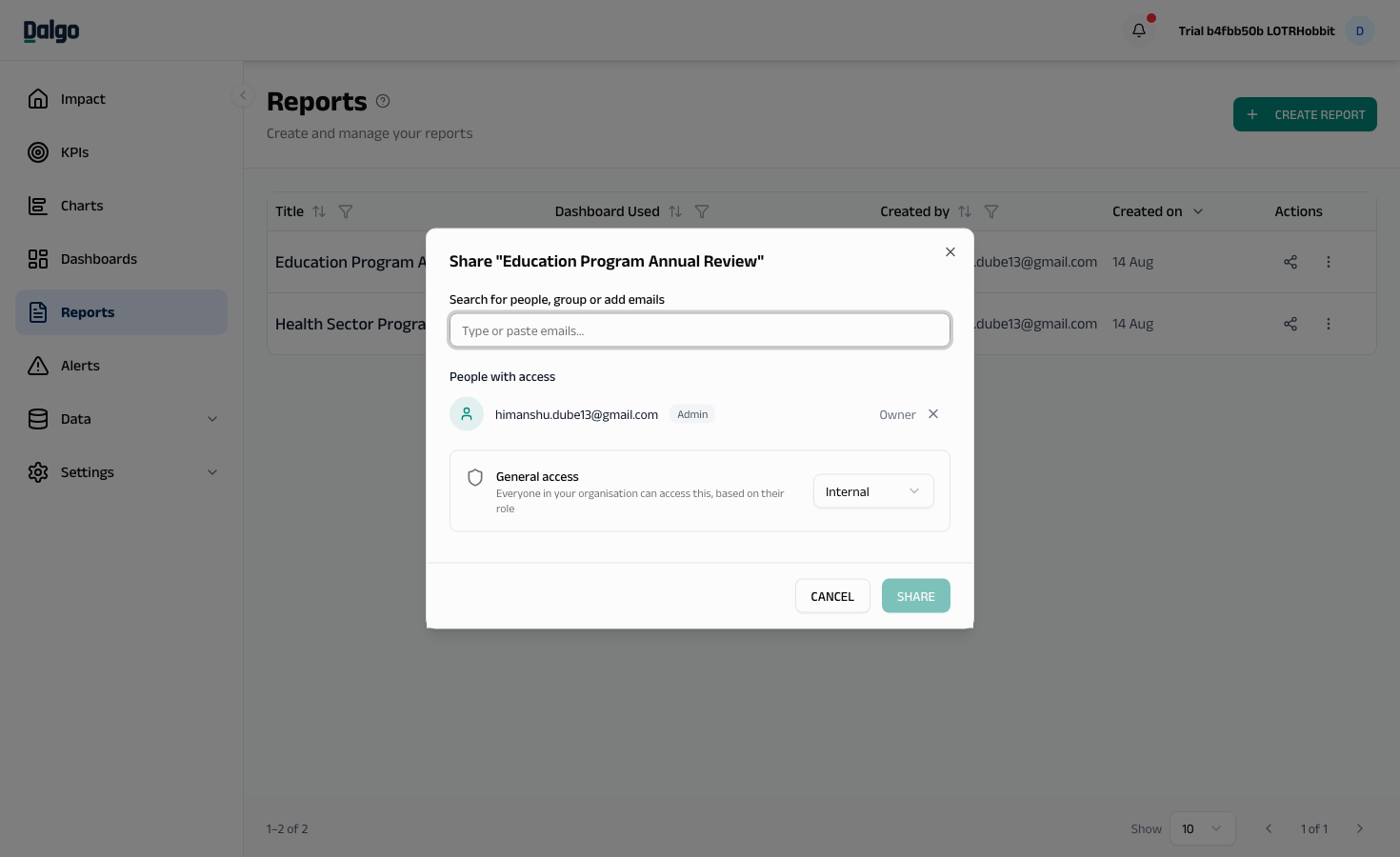
Adding people or groups
- In the Search for people, group or add emails field, search for an existing user or group, or type a new email address.
- Set the permission level: Can View or Can Edit.
- Select Share.
You can paste a comma-separated list of emails to add multiple people at once.
Unrecognised emails are flagged as external. That person receives an invitation to join Dalgo as a Member. Their access is applied when they accept — they appear as pending until then. Pending invites expire after 30 days.
About reports and source dashboards
Reports are independent from their source dashboards. Once created, a report is a frozen snapshot — it continues to load even if the source dashboard, charts, or KPIs are later deleted or restricted.
Sharing a report gives access to that snapshot only. It does not grant any access to the source dashboard or its charts.
Permission levels
| Level | What they can do |
|---|---|
| Can View | View the frozen report snapshot, read comments, and add comments. |
| Can Edit | Regenerate the report snapshot, edit the executive summary, moderate comments (delete or hide). Can also re-share with others up to Edit level. Cannot delete — only the report owner or an Admin can delete a report. Edit access on a report does not mean edit access on the source dashboard or its charts. |
Public link
Toggle Public sharing on to generate a link anyone can open — no Dalgo account required.
- Public links are view-only. Anonymous visitors cannot comment.
- Public links are only available when your Admin has enabled Allow public sharing in Settings > Access > Roles.
Making a report private
Toggle Private on to ignore the org-wide floor for this report. Only people with an explicit share (or Admins) can see it.
- Turning Private on immediately disables any active public link on the report.
- Turning Private off does not restore the public link — re-enable it manually if needed.
Requesting access
If someone opens a report link they don't have access to, they see a Request Access screen. They can request View or Edit and add an optional note. The request goes to the report owner.
- The owner sees pending requests in the Requests section inside the share modal.
- Approving creates a direct share at the chosen level. The requester is notified.
Requesting edit access
If you can view a report but need to edit it, a Request Edit access pill appears at the top of the report view. Select it to send a request to the report owner, with the level pre-set to Edit.
- The owner approves or declines from the Requests section in the share modal.
- Approving upgrades your access to Edit. You are notified when a decision is made.
Next: Exporting and deleting · Comments · Access settings