Access
Access is where you manage who can use your Dalgo organisation and what each person can do by default.
Select Settings in the left menu, then select Access. You will see three tabs: People, Groups, and Roles.
People
The People tab lists every member of your organisation, their role, status, and join date.
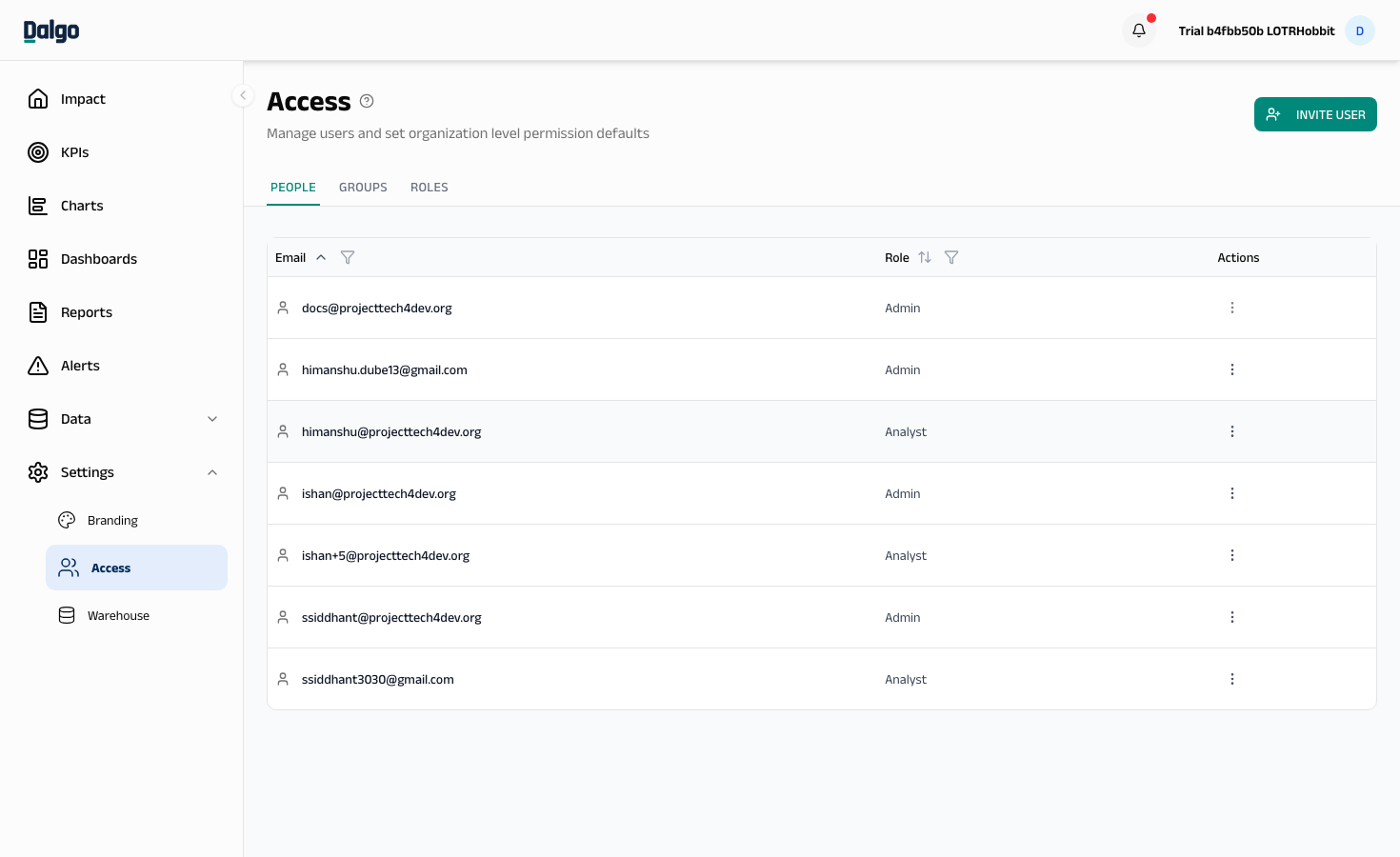
Inviting a new user
- Select + Invite User in the top-right corner.
- Enter the user's Email address.
- Select a Role: Admin, Analyst, or Member.
- Select Send Invitation.
The user receives an invitation email and appears with a Pending badge until they accept. Pending invitations expire after 30 days.
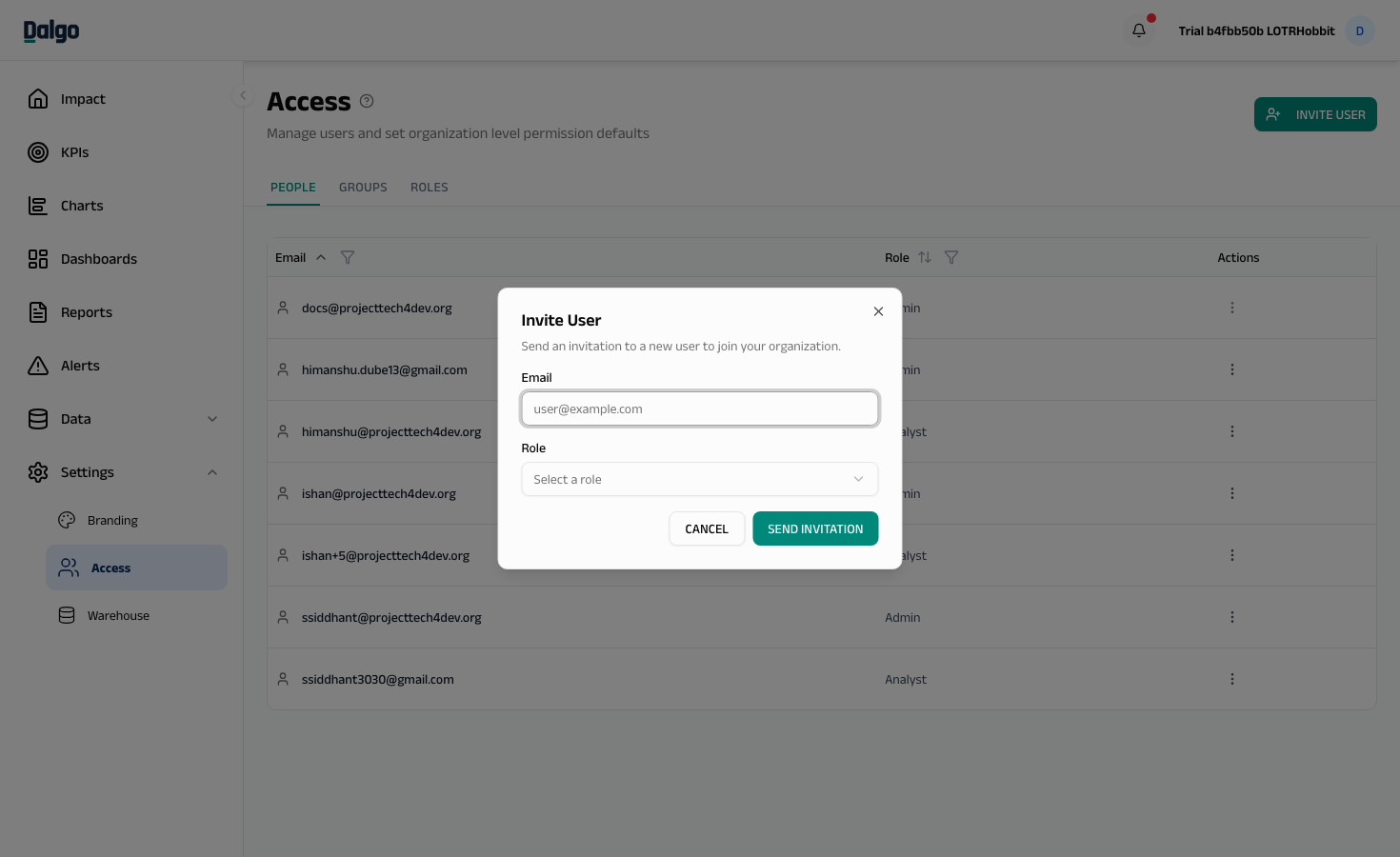
Only Admins can invite users as Analyst or Admin. Any role can invite someone as a Member, but in practice the invite surface is Admin-only here. Day-to-day, Analysts invite collaborators directly from the share modal on a resource.
Changing a role or removing a user
- Select the ⋯ menu on the user's row.
- Select Edit Role to assign a different role, or Remove to revoke their access.
Removing a user immediately revokes their access to Dalgo.
Roles explained
Every user gets one of three roles:
| Admin | Analyst | Member | |
|---|---|---|---|
| Dashboards, Charts, KPIs, Reports | Create, edit, delete, and share anyone's. | Create their own. Edit, delete, and share resources they have Edit access on. Delete only their own. | Create their own. Edit, delete, and share resources they own or have been granted Edit access on. Access to others' content is controlled by the org floor and direct shares. |
| Metrics | Create, edit, delete any | Create, edit, delete any | View only |
| Alerts | Create, edit, delete any; transfer ownership | Create on accessible sources; read any; edit and delete own only | View config on accessible sources; can be a recipient |
| Ingest, Transform, Warehouse, Orchestrate | Full access | View only | Not shown |
| Settings | Full access | Groups tab (all groups visible; edit/delete own only) | No access |
- Admins govern everything. They can view, edit, delete, and share any resource regardless of who created it, and manage all org settings.
- Analysts build content. They can create dashboards, charts, reports, KPIs, and metrics freely, and can share resources where they have Edit access. They cannot edit data infrastructure (sources, pipelines, warehouse).
- Members create and consume. They can create their own dashboards, charts, and KPIs and manage the resources they own. They see others' content only as the org floor setting allows or via direct shares.
Dalgo simplified its roles in mid-2026. Existing users were migrated automatically: Account Manager and Pipeline Manager became Admin, Analyst kept its name but no longer edits sources, dbt models, or pipelines directly, and Guest became Member.
Groups
The Groups tab lets you create named sets of people so you can share a dashboard, chart, KPI, or report with a whole team in one step — instead of adding each person individually.
Groups are org-wide and visible to all Analysts and Admins. Members do not have access to the Groups tab.
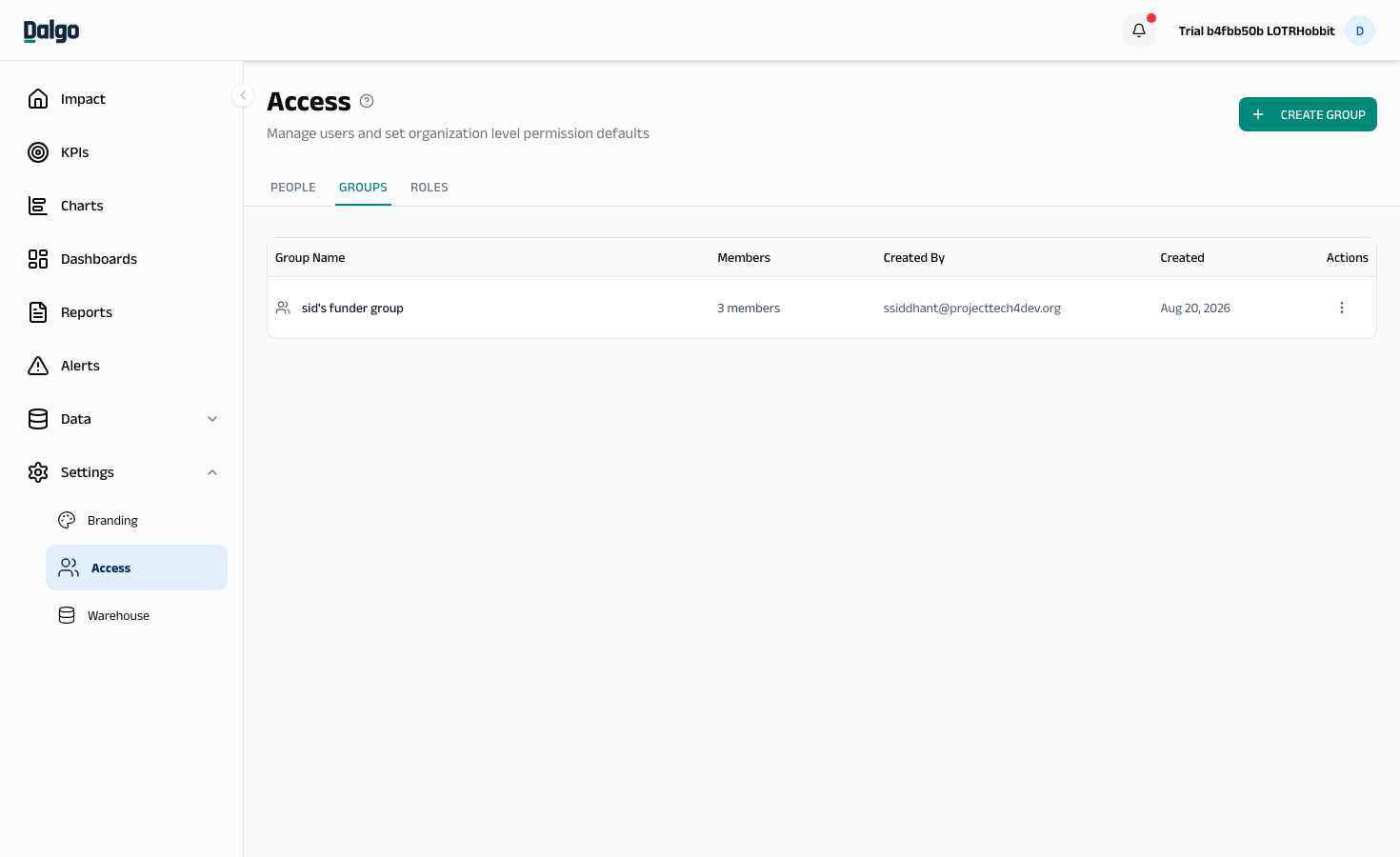
Creating a group
- Select + Create Group.
- Enter a Group name. A warning appears if the name is already taken.
- In the Add people field, search for existing users or paste comma-separated emails.
- Select Create Group.
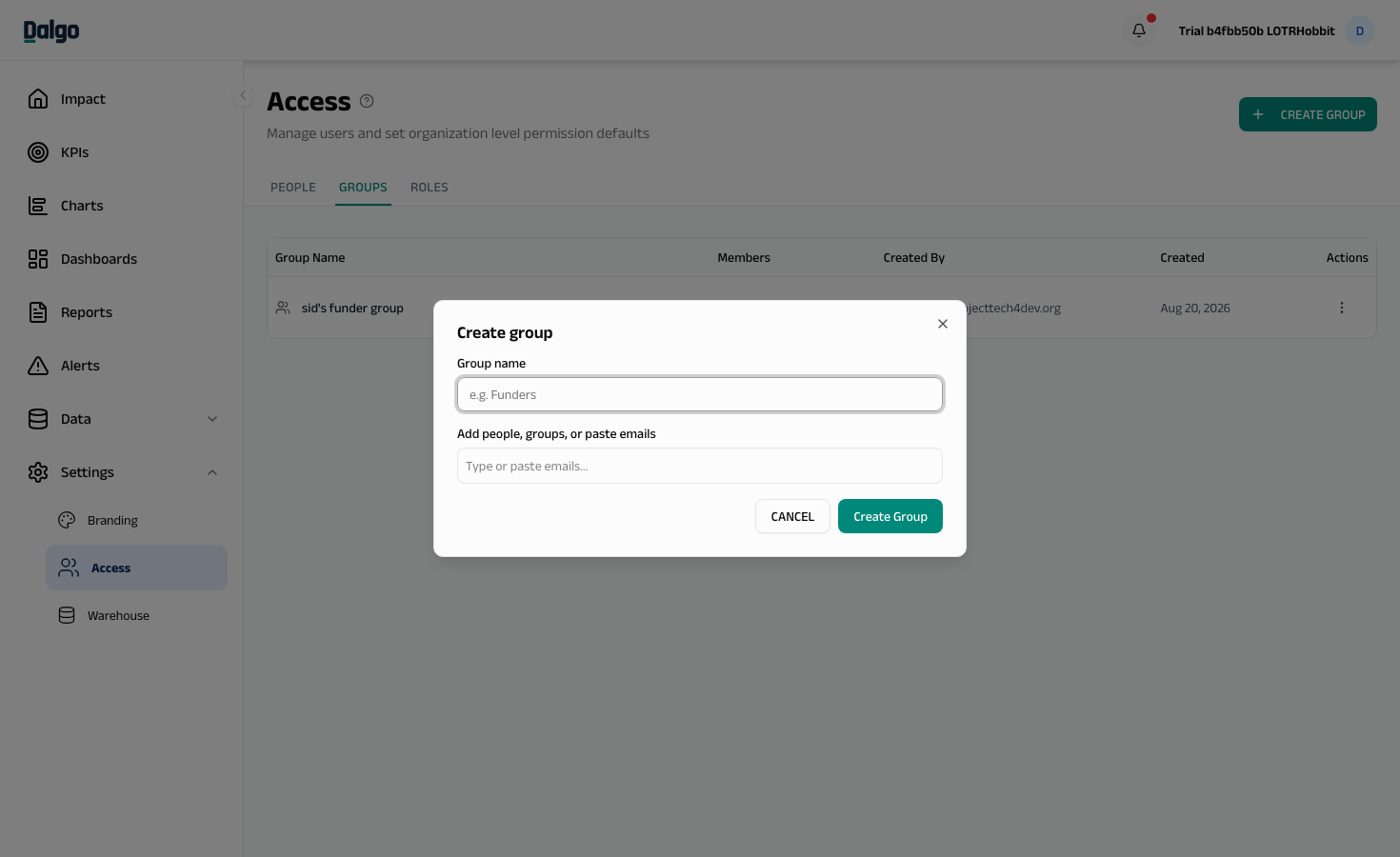
Editing or deleting a group
Select the ⋯ menu on a group row to Edit Group or Delete Group.
- Only the group's creator or an Admin can edit or delete it. Other Analysts can share resources with the group but cannot change its membership.
- Adding a member grants them access to every resource the group is already shared on.
- Removing a member revokes group-derived access, unless they also hold a direct share on the same resource.
- Deleting a group revokes all access the group conferred.
Who can see which groups
| Role | Groups visible |
|---|---|
| Admin | All groups in the org |
| Analyst | All groups in the org (edit and delete only on groups they created) |
| Member | None |
Roles
The Roles tab controls the org-wide permission floor — the default access each role has on resources (Dashboards, Charts, Reports, KPIs) that have not been explicitly shared.
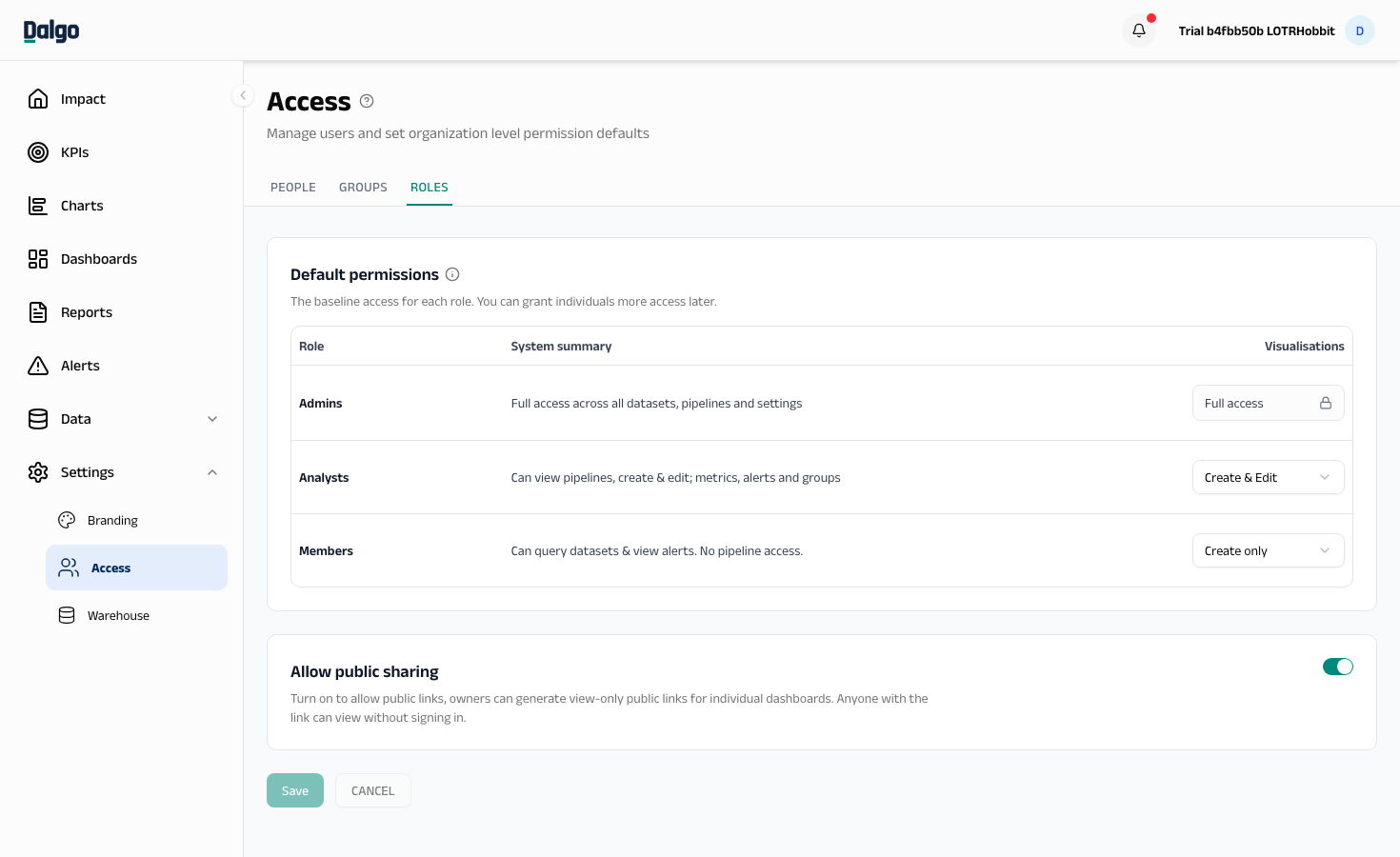
Permission floor options
| Option | What it means |
|---|---|
| Create only | The role can create their own resources but cannot see or open other users' resources unless explicitly shared. Members with this floor see empty list pages until something is shared directly with them. |
| Create & View | The role can view all resources in the org by default, plus create their own. |
| Create & Edit | The role can view and edit all resources in the org by default, plus create their own. |
The floor controls access to other people's resources. Creating your own resources (dashboards, charts, KPIs, reports) is always allowed regardless of the floor setting — it is a role permission, not a floor permission.
Factory defaults:
| Role | Default floor |
|---|---|
| Admin | Always full access (not configurable) |
| Analyst | Create & Edit |
| Member | Create & View |
The floor cannot be set so that Member has more access than Analyst. If you try, the Roles tab blocks the change.
Changing the floor takes effect immediately across all resources in your org. Direct shares set via the share modal on individual resources are unaffected — users with an explicit share keep their access even after a floor tightening.
Allow public sharing
The Allow public sharing toggle controls whether the org can generate public links on dashboards and reports.
- On (default) — owners and editors can enable a public link on individual dashboards and reports.
- Off — public links are disabled org-wide. Existing public links immediately stop working. Turning the toggle back on restores them.
Related: Sharing dashboards · Sharing reports · Settings