Sharing a dashboard
Give specific people or groups access to a dashboard — including every chart and KPI inside it — without exposing the rest of your org's data.
When you share a dashboard, access automatically cascades to all inner charts and KPIs. You do not need to share each chart separately.
Opening the share modal
- Open the dashboard you want to share, or find it in the Dashboards list.
- Select the Share button (↗) in the top-right corner.
Adding people or groups
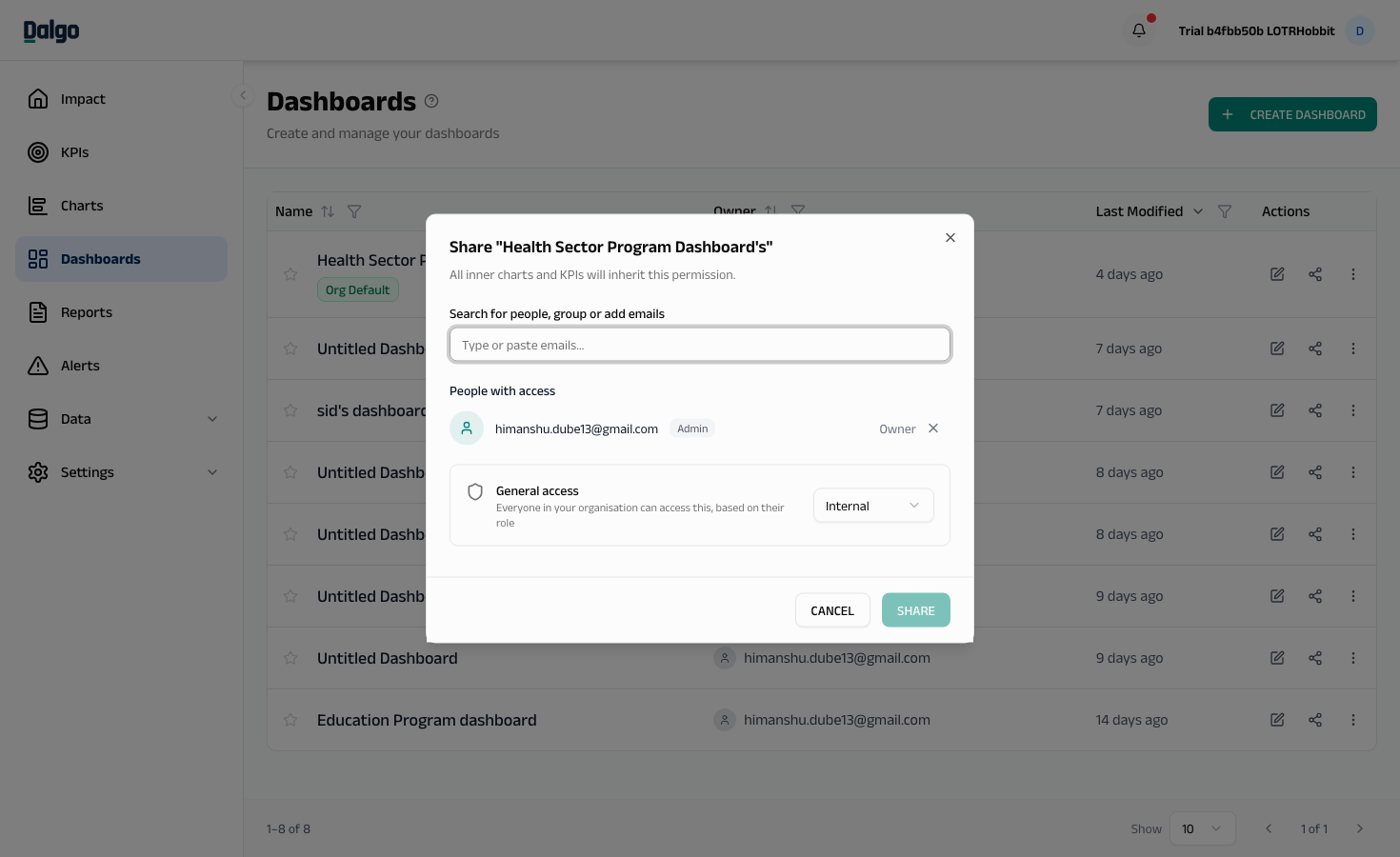
- In the Search for people, group or add emails field, search for an existing user or group, or type a new email address.
- Set the permission level: Can View or Can Edit.
- Select Share.
You can paste a comma-separated list of emails to add multiple people at once.
Unrecognised emails are flagged as external. That person receives an invitation to join Dalgo. Their access is applied when they accept — they appear as pending until then. Pending invites expire after 30 days.
A notice in the modal reminds you: "All inner charts and KPIs will inherit this permission." You do not need to share charts or KPIs individually — cascade handles it.
Permission levels
| Level | What they can do |
|---|---|
| Can View | Open the dashboard, view all charts and KPIs inside it, apply filters, export. Cannot edit anything. |
| Can Edit | View and edit the dashboard layout and any charts or KPIs inside it. Can re-share the dashboard with others up to Edit level. Cannot delete — only the owner or an Admin can delete a dashboard. |
The default permission for a new share is Can View.
Viewing and managing existing shares
The People with access section of the share modal lists everyone who currently has access:
- To change a permission level, select the dropdown next to a person or group's name.
- To remove a share, select ✕ next to their name.
Removing or downgrading a share on a dashboard also removes or reduces access on all its inner charts and KPIs. A confirmation prompt appears before the change is applied.
Transferring ownership
The permission dropdown next to any user in the People with access list includes Transfer ownership.
- Only the current owner or an Admin can initiate a transfer.
- The recipient must currently hold effective Edit access on the dashboard.
- A confirmation dialog appears before the transfer takes effect.
- After the transfer, the previous owner is automatically granted Edit access on the dashboard.
Admin takeover
An Admin who is not the current owner sees a small ✕ button on the owner's row in the People with access list. Selecting it opens a confirmation dialog that transfers ownership to the Admin directly, without requiring the current owner to act. After the takeover, the previous owner retains Edit access.
Inviting new users
When you type an email address that is not yet in Dalgo, a role selector appears. Non-admins can only invite users as Member. Admins can select any role.
The new user receives an invitation email and their share activates when they accept — they appear as pending until then.
Public link
Toggle Public sharing on to generate a link anyone can open — no Dalgo account required.
- Public links are view-only.
- Visitors who open a public link see the dashboard and all its inner charts, regardless of those charts' individual access settings.
- Public links are only available when your Admin has enabled Allow public sharing in Settings > Access > Roles.
Making a dashboard private
Toggle Private on to ignore the org-wide floor for this specific dashboard.
When Private is on, only people and groups with an explicit share (or Admins) can see the dashboard. Anyone without a direct share or group share loses access immediately.
- Turning Private on immediately disables any active public link on the dashboard.
- Turning Private off does not restore the public link — re-enable it manually if needed.
Request access
If someone opens a dashboard link they don't have access to, they see a Request Access screen. They can request View or Edit and add an optional note. The request is sent to the dashboard owner.
- The owner sees pending requests in the Requests section inside the share modal.
- Approving creates a direct share at the chosen level. The requester is notified.
- Declining sends a notification to the requester. Access is not granted.
If you can already view a dashboard but need to edit it, a Request Edit access pill appears at the top of the dashboard view. Select it to send an upgrade request to the owner, with the level pre-set to Edit.
Next: Viewing dashboards · Sharing charts · Access settings