Sharing a chart
Control who can view or edit a specific chart — by sharing it directly, or automatically through any dashboard it belongs to.
Charts receive access from three sources, and the highest level wins:
- Org floor — the default access every role gets on all resources (set in Settings > Access > Roles).
- Cascade — when a dashboard is shared, all charts inside it automatically inherit the same permission.
- Direct share — access granted to a specific person or group on this chart only.
Sharing a chart directly
- Open the chart, or find it in the Charts list.
- Select the Share button (↗).
- Search for a person or group, or paste an email address.
- Set Can View or Can Edit, then select Share.
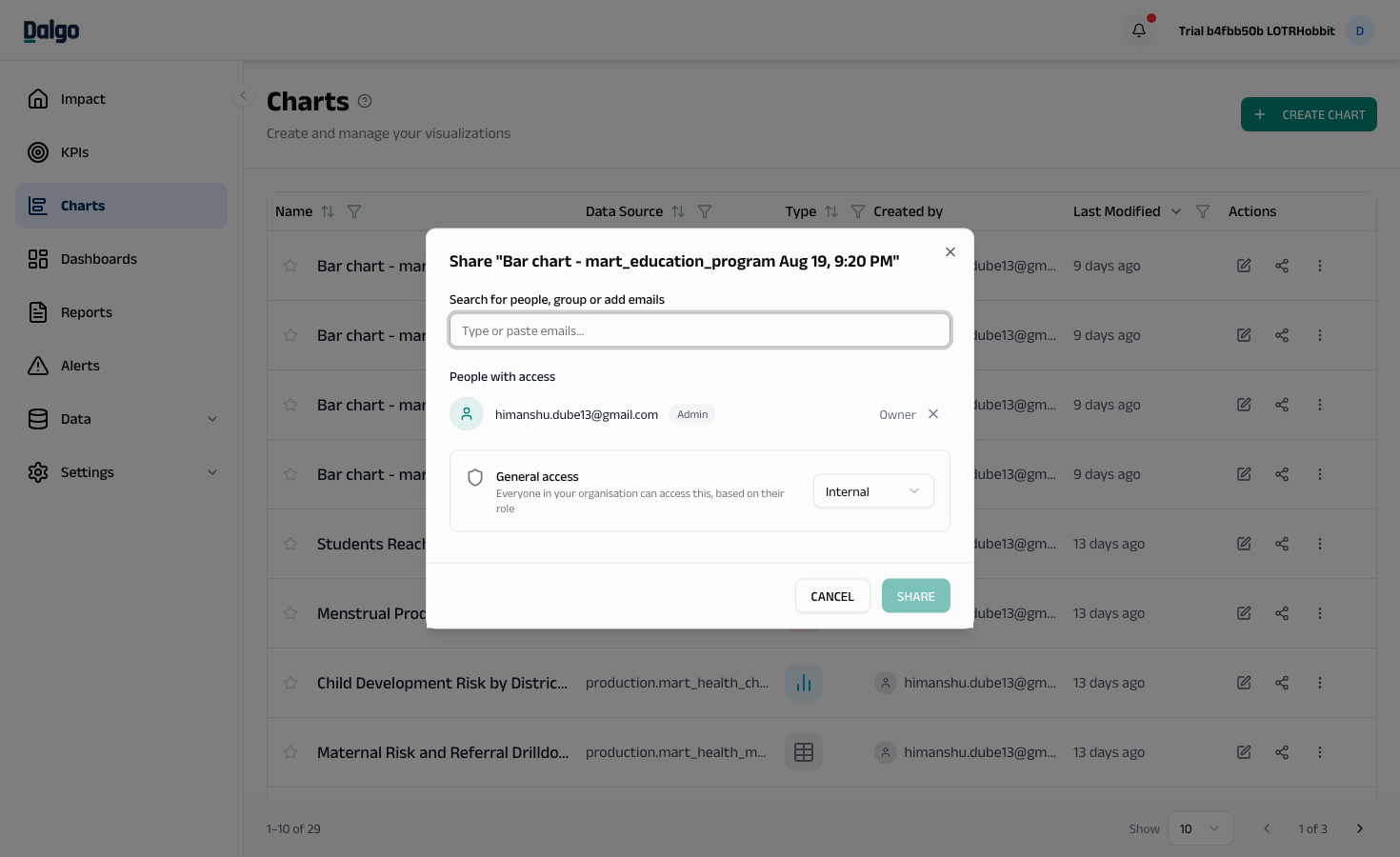
The same invite rules apply as for dashboards — unrecognised emails receive an invitation to join as a Member, and their access activates on acceptance. See Sharing a dashboard for details on bulk paste and pending invites.
Cascade-inherited access
If a user's access on a chart comes from a parent dashboard, the chart's share modal shows their effective level but prevents you from changing it there directly. A message reads: "Access on this resource is inherited from: [Dashboard name] — change permissions from there."
To change cascade-derived access, open the parent dashboard's share modal and adjust the share at that level.
If the chart belongs to more than one dashboard, all source dashboard names are listed. Change the share on whichever dashboard grants the level you want to adjust.
A user who holds Edit on a chart only through cascade has full re-share rights — they can open the chart's share modal and add others up to Edit level.
Permission levels
| Level | What they can do |
|---|---|
| Can View | Open and view the chart, apply filters, export data. Cannot edit. |
| Can Edit | Edit the chart configuration and re-share with others up to Edit level. Cannot delete — only the chart owner or an Admin can delete a chart. |
Making a chart private
Toggle Private on in the share modal to ignore the org-wide floor for this chart. Only people with an explicit direct share, a cascade share from a parent dashboard, or Admin access can see it.
Requesting edit access
If you can view a chart but need to edit it, a Request Edit access pill appears at the top of the chart view. Select it to send a request to the chart owner.
- The owner approves or declines from the Requests section in the share modal.
- Approving upgrades your access to Edit. You are notified when a decision is made.
Next: Sharing a dashboard · Sharing KPIs · Access settings