Sharing a KPI
Control who can view or edit a specific KPI — by sharing it directly, or automatically through any dashboard it lives on.
KPI access works the same way as chart access: the org floor sets a baseline, and direct shares or dashboard cascade can add to it.
Sharing a KPI directly
- Open the KPI or find it in the KPIs list.
- Select the Share button (↗).
- Search for a person or group, or paste an email address.
- Set Can View or Can Edit, then select Share.
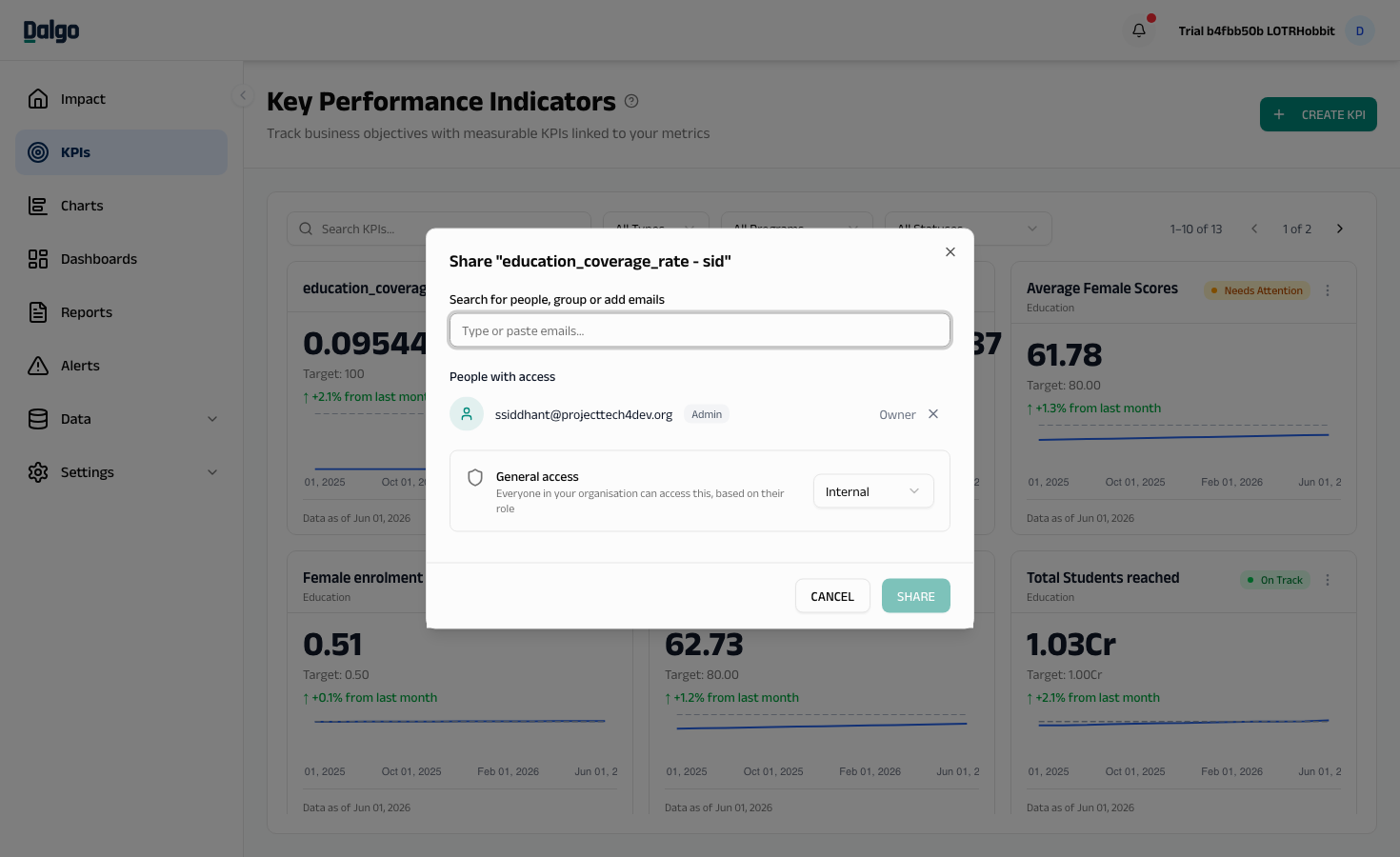
Unrecognised emails receive an invitation to join Dalgo as a Member. Their access activates on acceptance and they appear as pending until then. Pending invites expire after 30 days.
Cascade-inherited access
When a dashboard is shared, all KPIs on that dashboard automatically inherit the same permission. If a user's access on a KPI comes entirely from a parent dashboard, the KPI's share modal shows: "Access on this resource is inherited from: [Dashboard name] — change permissions from there."
To change that access, open the parent dashboard's share modal and adjust the share there.
Permission levels
| Level | What they can do |
|---|---|
| Can View | View the KPI card, the drilldown chart, and any notes. Cannot edit. |
| Can Edit | Edit the KPI definition, target, and RAG thresholds. Re-share with others up to Edit level. Cannot delete — only the KPI owner or an Admin can delete it. |
Making a KPI private
Toggle Private on in the share modal to ignore the org-wide floor for this KPI. Only people with an explicit share, a cascade share from a parent dashboard, or Admin access can see it.
Requesting edit access
If you can view a KPI but need to edit it, a Request Edit access pill appears at the top of the KPI view. Select it to send a request to the KPI owner.
- The owner approves or declines from the Requests section in the share modal.
- Approving upgrades your access to Edit. You are notified when a decision is made.
Next: Notes and drilldown · Sharing a dashboard · Access settings